Figma 디자인이랑 실제 웹사이트가 얼마나 똑같이 구현됐는지 확인하고 싶었다. 눈으로 보면 비슷해 보이는데, 정확히 몇 픽셀이 다른지 알 수 있으면 좋겠다는 생각이 들었다.
pixelmatch는 두 이미지를 픽셀 단위로 비교해서 차이점을 시각화해주는 라이브러리다.
왜 픽셀 비교가 필요할까?
디자인 QA를 하다 보면 "이거 디자인이랑 똑같아요?"라는 질문을 자주 받는다. 눈으로 봐서는 잘 모르겠는데, 뭔가 살짝 다른 것 같기도 하고... 이럴 때 픽셀 단위로 비교해주는 도구가 있으면 훨~~씬 명확하게 답할 수 있다.
기존에는 Figma 디자인을 캡처하고, 웹사이트를 캡처해서, 포토샵에서 레이어 오버레이로 비교하곤 했다. 근데 이게 매번 하기엔 너무 번거롭다. 자동화할 수 있으면 좋겠다고 생각했다.
pixelmatch 설치
npm install pixelmatch pngjspixelmatch는 순수하게 픽셀 비교만 담당하고, 이미지 파싱은 pngjs가 해준다. 둘 다 설치해야 한다.
기본 사용법
import { PNG } from 'pngjs';
import pixelmatch from 'pixelmatch';

// 이미지 로드
const img1 = PNG.sync.read(fs.readFileSync('image1.png'));
const img2 = PNG.sync.read(fs.readFileSync('image2.png'));

// 결과를 담을 버퍼 생성
const diff = new PNG({ width: img1.width, height: img1.height });

// 비교 실행
const numDiffPixels = pixelmatch(
  img1.data,
  img2.data,
  diff.data,
  img1.width,
  img1.height
);

console.log(`다른 픽셀 수: ${numDiffPixels}`);기본 사용법은 간단하다. 두 이미지의 raw 픽셀 데이터를 넘기면, 다른 픽셀 수를 반환해준다. 세 번째 인자로 넘긴 diff.data에는 차이점이 시각화된 이미지 데이터가 담긴다.
옵션으로 정밀도 조절하기
const numDiffPixels = pixelmatch(
  img1.data,
  img2.data,
  diff.data,
  width,
  height,
  {
    threshold: 0.1,
    includeAA: false,
    alpha: 0.1,
    diffColor: [255, 0, 0],
    diffColorAlt: [0, 255, 0]
  }
);threshold
0~1 사이 값으로, 얼마나 엄격하게 비교할지 결정한다. 0이면 완전히 똑같아야 하고, 1이면 거의 다 같다고 판단한다. 보통 0.1 정도가 적당하다.
includeAA
안티앨리어싱 픽셀을 비교에 포함할지 여부다. false로 하면 폰트나 곡선 가장자리의 미세한 차이는 무시한다. 디자인 비교할 때는 false가 더 실용적이다.
diffColor / diffColorAlt
차이점을 어떤 색으로 표시할지 정한다. 기본값은 빨간색인데, 원본 이미지에 빨간색이 많으면 다른 색으로 바꾸는 게 좋다.
실제 구현 코드
실제로 프로젝트에서 사용한 코드를 보자.
async compareImages(originalImagePath: string, capturedImagePath: string): Promise<ComparisonResult> {
  // 이미지 로드
  const originalPNG = await this.loadPNG(originalImagePath);
  const capturedPNG = await this.loadPNG(capturedImagePath);

  // 더 큰 차원을 기준으로 설정
  const maxWidth = Math.max(originalPNG.width, capturedPNG.width);
  const maxHeight = Math.max(originalPNG.height, capturedPNG.height);

  // 이미지 리사이즈 (크기가 다를 수 있으므로)
  const resizedOriginal = await this.resizeImage(originalImagePath, maxWidth, maxHeight);
  const resizedCaptured = await this.resizeImage(capturedImagePath, maxWidth, maxHeight);

  // PNG로 변환
  const originalResizedPNG = PNG.sync.read(resizedOriginal);
  const capturedResizedPNG = PNG.sync.read(resizedCaptured);

  // 차이점 비교를 위한 출력 이미지 버퍼 생성
  const diff = new PNG({ width: maxWidth, height: maxHeight });

  // pixelmatch로 비교
  const pixelmatch = (await import('pixelmatch')).default;
  const pixelDifference = pixelmatch(
    originalResizedPNG.data,
    capturedResizedPNG.data,
    diff.data,
    maxWidth,
    maxHeight,
    {
      threshold: 0.1,
      includeAA: false,
      alpha: 0.1,
      diffColor: [255, 0, 0],
      diffColorAlt: [0, 255, 0]
    }
  );

  // 결과 계산
  const totalPixels = maxWidth * maxHeight;
  const diffPercentage = (pixelDifference / totalPixels) * 100;

  return {
    pixelDifference,
    totalPixels,
    diffPercentage: Math.round(diffPercentage * 100) / 100,
  };
}
이미지 크기가 다를 때
Figma 디자인과 웹사이트 스크린샷의 크기가 다를 수 있다. 이럴 때는 더 큰 쪽에 맞춰서 리사이즈한다. sharp 라이브러리를 사용하면 쉽게 처리할 수 있다.
private async resizeImage(imagePath: string, targetWidth: number, targetHeight: number): Promise<Buffer> {
  return await sharp(inputBuffer)
    .resize(targetWidth, targetHeight, {
      fit: 'contain',
      background: { r: 255, g: 255, b: 255, alpha: 1 }
    })
    .png()
    .toBuffer();
}fit: 'contain'으로 비율을 유지하면서 크기를 맞추고, 남는 영역은 흰색으로 채운다.
Dynamic Import를 쓴 이유
코드에서 await import('pixelmatch')로 동적 임포트를 쓴 건, pixelmatch가 ESM 전용 모듈이라 CommonJS 환경에서 직접 import가 안 되기 때문이다. TypeScript + Node.js 환경에서 이런 ESM 모듈을 쓸 때 동적 임포트가 해결책이 된다.
결과 활용하기
비교 결과로 얻을 수 있는 정보들이다.
- pixelDifference: 다른 픽셀의 개수
- totalPixels: 전체 픽셀 수
- diffPercentage: 차이 비율 (%)
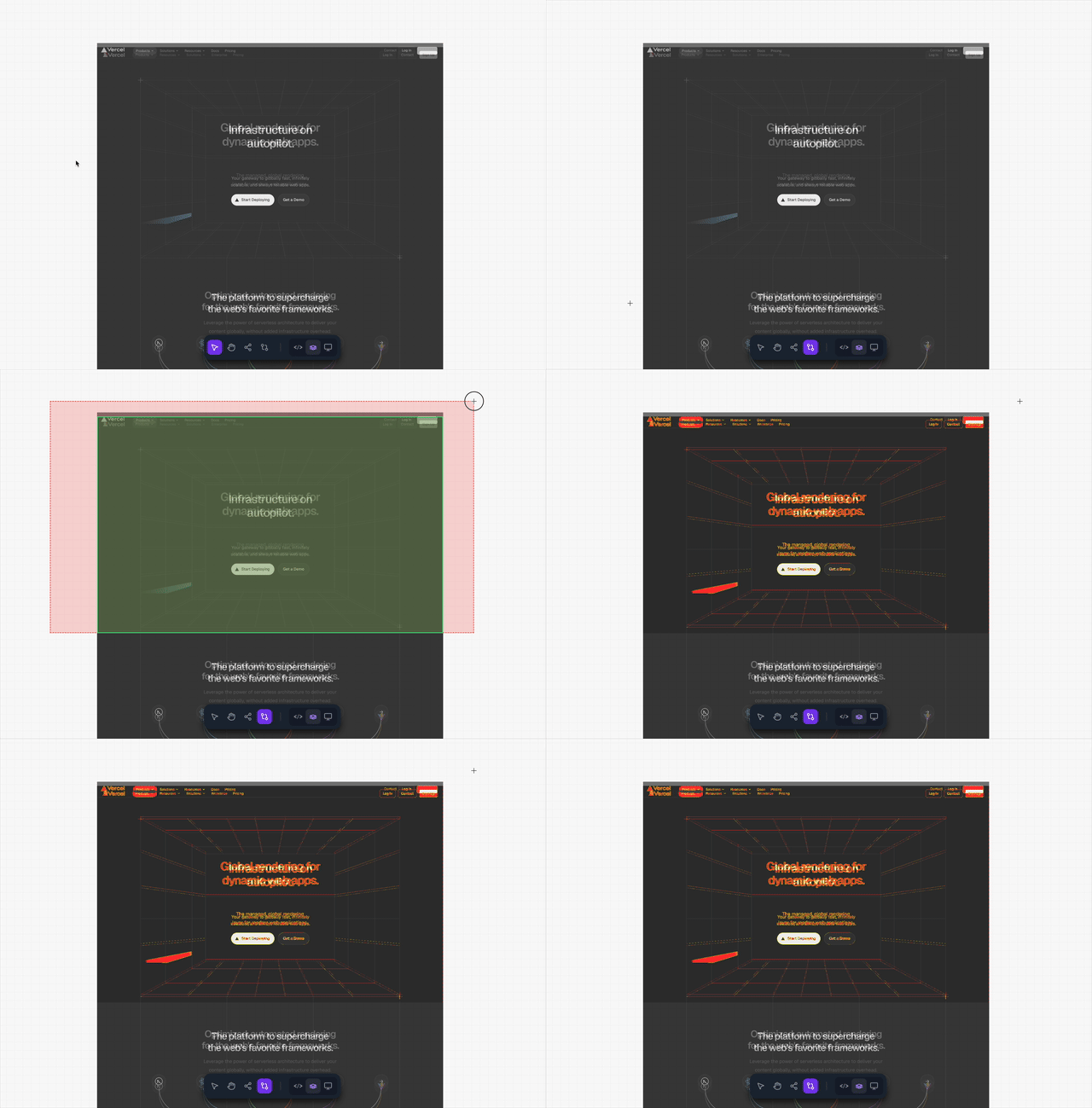
- diff 이미지: 차이점이 빨간색으로 표시된 이미지
이 정보들로 "이 페이지는 디자인 대비 99.5% 일치합니다" 같은 정량적인 피드백을 줄 수 있다.
정리하자면
pixelmatch는 가볍고 빠르면서도 정확한 픽셀 비교를 해준다. 디자인 QA 자동화나 시각적 회귀 테스트에 딱이다. threshold 옵션으로 엄격도를 조절할 수 있어서, 상황에 맞게 유연하게 사용할 수 있다.
다음에는 이 비교 결과를 더 직관적으로 보여주는 오버레이 뷰를 만들어봐야겠다.
프런트엔드 엔지니어, QA 엔지니어 그리고 디자이너를 위한
" ALL IN ONE " QA 서비스

https://pixeldiff.turtle-tail.com
'FrontEnd' 카테고리의 다른 글
| S3 Presigned URL로 클라이언트 직접 업로드 (0) | 2026.01.22 |
|---|---|
| 풀페이지 스크린샷 타일 스티칭 구현 (0) | 2026.01.20 |
| Pixi.js 줌 레벨별 UI 표시/숨김 구현하기 (0) | 2026.01.17 |
| JavaScript 클로저(Closure) 이해하기 (0) | 2023.05.31 |